IPTV Keeps Buffering or Freezing? 15 Ways to Fix It in 2026
A practical, ordered rescue guide for stopping IPTV buffering now, with Wi-Fi, Ethernet, router, player, device, DNS, and support checks.
Published 2026-10-05 · Updated 2026-10-09
Start here if playback is buffering right now
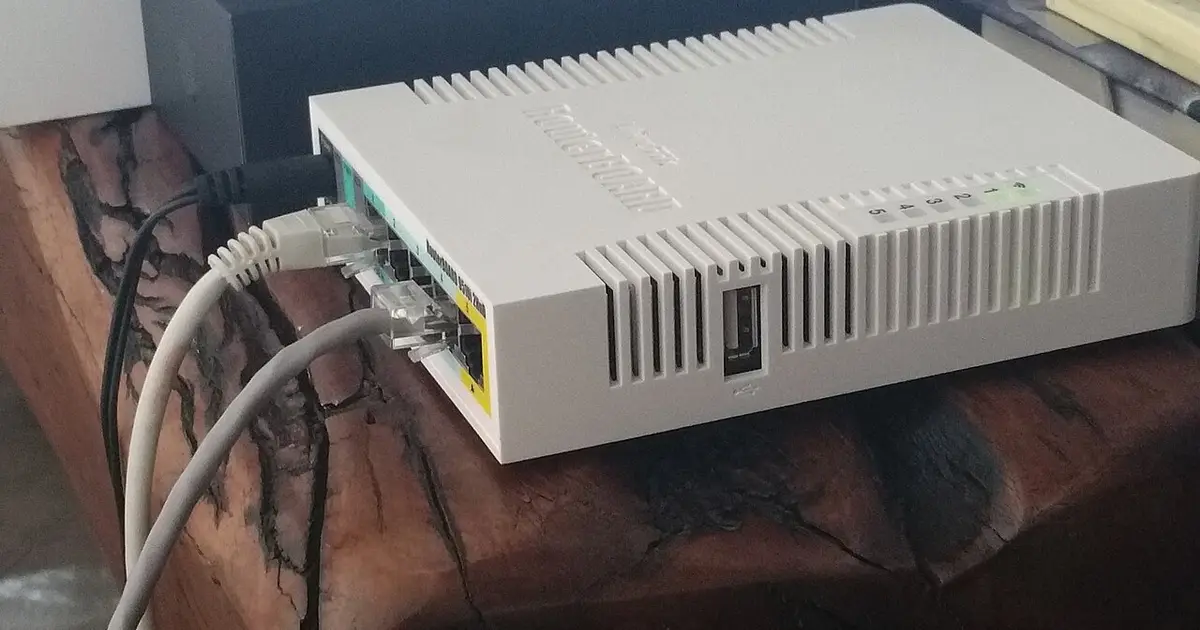
When IPTV buffering starts during a live program, the fastest useful fix is not a factory reset. Start with the smallest reversible checks: pause the stream for a few seconds, back out to the channel list, open a second channel, and confirm whether ordinary internet apps still load. Those four checks tell you whether the problem is a single stream, the player session, the home connection, or the device. If only one item fails while other channels play cleanly, changing router settings is unlikely to help. If every video app is slow, the stream is probably not the first place to investigate.
Keep the first five minutes simple. Do not change DNS, reinstall the player, delete playlists, or reset a box before you know the scope of the failure. Write down the channel, device, player name, connection type, and the exact symptom: spinning loader, short pause every few seconds, long freeze after a minute, audio continuing while video stops, or a complete disconnect. That note is useful even if the first fix works, because repeated buffering often returns at the same time of day or on the same device.
If you are using Wi-Fi, move the device closer to the router or temporarily connect Ethernet before doing anything dramatic. If the stream becomes stable on a wired connection, you have a practical workaround and a clear direction: wireless signal, interference, mesh backhaul, or router placement. If Ethernet does not help, the next checks should move to the device, the player, the stream, or the service path rather than continuing to blame Wi-Fi.
| Problem pattern | Quick test | Next action |
|---|---|---|
| Every channel pauses | Open another streaming app and a speed test | Reduce household load, then restart the router |
| One channel stalls | Try two nearby channels from the same category | Treat it as stream-specific and collect the channel name |
| Wi-Fi pauses but Ethernet works | Plug in for ten minutes | Improve router placement or use wired networking |
| One device struggles | Try the same stream on another device | Clear cache, update the app, or test a lighter player |
The 15 fixes to try in order
1. Try another channel. This separates a single bad feed from a broad playback problem. 2. Reopen the current channel from the channel list rather than scrubbing or repeatedly pressing play. 3. Restart the player app so a stuck session, token, or decoder state is cleared. 4. Restart the streaming device, especially if it has been sleeping for days. 5. Check whether other internet video apps are also unstable. These first five steps take only a few minutes and avoid unnecessary account changes.
6. Switch from Wi-Fi to Ethernet for one controlled test. 7. If Ethernet is impossible, move the device closer to the router and avoid hiding it behind a television, cabinet, or soundbar. 8. Disconnect heavy background usage such as cloud backups, game downloads, large updates, or multiple 4K streams in the same home. 9. Restart the router and modem, then wait until the connection is fully online before judging the stream. 10. Test the same channel on a second device so you can tell whether the first device is overloaded or misconfigured.
11. Clear the player cache if the app supports it without deleting credentials. 12. Update the player and the device operating system if updates are pending. 13. Try a different compatible IPTV player, because decoder handling and buffer settings vary by app. 14. Test a different network, such as a phone hotspot, only long enough to compare behavior; do not treat mobile data as a permanent answer. 15. Contact support with the evidence: affected channel names, device, player, connection type, time of day, and which of the previous checks changed the result.
Fix Wi-Fi causes before chasing speed numbers
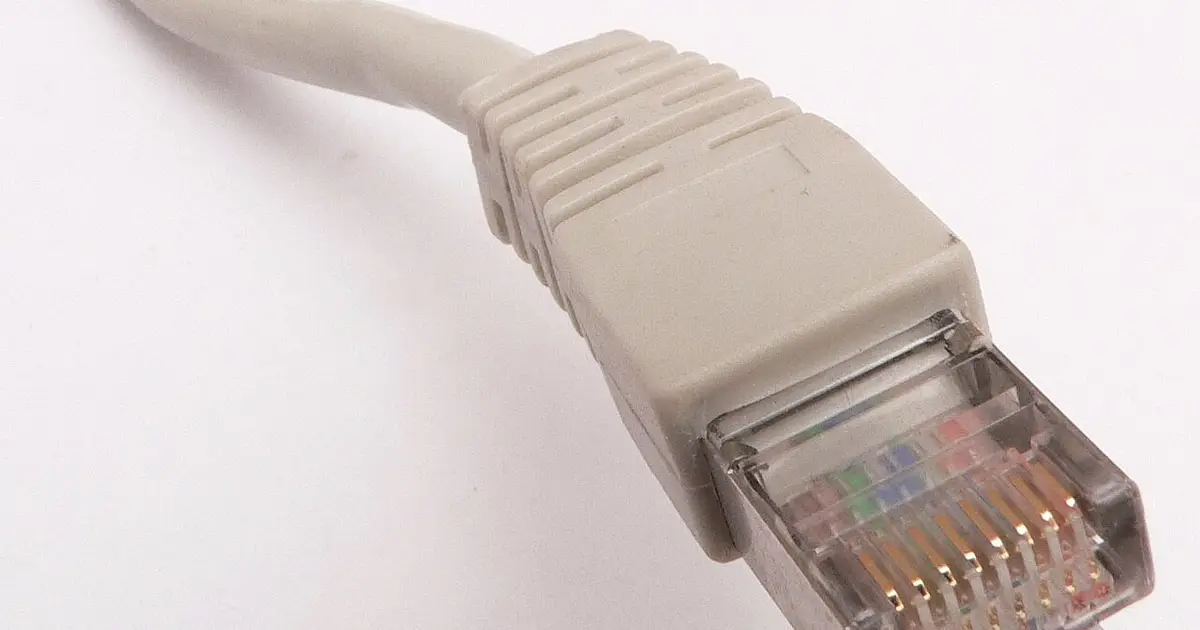
A high speed-test result does not guarantee stable IPTV playback. Live streams are sensitive to jitter, short dropouts, and packet loss. A connection can show a large download number and still pause every few seconds if the router briefly loses packets or the device sits at the edge of the Wi-Fi range. Look for patterns: buffering when someone starts a console download, buffering in one room but not another, buffering after the microwave runs, or buffering only on a stick powered by a weak USB port.
Router placement matters more than many people expect. A streaming box behind a television may have a weaker signal than a phone held in the same room. Thick walls, mirrored furniture, metal shelving, and crowded 2.4 GHz networks can all create intermittent stalls. If your router and player support both bands, compare 5 GHz at close range with 2.4 GHz at longer range. Do not assume one band is always better; choose the one that holds a steady connection in the actual room where you watch.
Ethernet is the best diagnostic because it removes wireless uncertainty. If wired playback is clean, you can keep using Ethernet, add a better access point, change router placement, or reduce mesh distance. If wired playback still buffers, Wi-Fi is probably not the main cause, and you should move down the list to player cache, device resources, app compatibility, or stream-specific symptoms.
Player, cache, and device fixes that matter
A player can buffer because its local state is stale. Long-running apps sometimes hold old sessions, corrupt guide data, or keep a decoder path open after a stream changes. Close the player completely, reopen it, and test the same channel once. If the app has a cache-clear option, use the app-level cache before deleting all app data. Deleting all data may remove login information, playlists, favorites, and guide settings, so it should come after simpler checks.
Device resources are another common cause. Low storage, background apps, thermal throttling, and older chipsets can all turn a stable stream into a stop-start experience. If the same channel plays smoothly on a newer phone but buffers on an older TV box, the internet connection is not proven guilty. Restart the older device, remove unused apps, check free storage, and test a lower-impact player before replacing the network.
Decoder settings can help, but they should be changed carefully. Some players offer hardware decoding, software decoding, buffer size, or live-stream engine options. Change one setting at a time and test the same channel for several minutes. If the new setting makes playback worse, put it back. A useful buffering fix is repeatable; a random improvement after five simultaneous changes does not tell you what actually helped.
When DNS or an alternate network is worth testing
DNS can affect connection setup, but it is rarely the first answer to active buffering. If channels take a long time to start, the player cannot resolve a server name, or the same app shows connection errors before playback begins, a DNS test may be reasonable. If the video starts instantly and then pauses every ten seconds, DNS is less likely than packet loss, Wi-Fi instability, congestion, or device limits.
An alternate network test is useful when you need to distinguish your home connection from the account or stream path. A short phone-hotspot test can show whether the same device and player behave differently away from the home router. Keep the test brief, because live video can use a lot of mobile data. If the stream improves on another network, your router, ISP route, or local network load deserves attention. If it behaves the same, collect evidence for the service-side conversation.
Do not use random DNS addresses from forum comments, and do not change router-wide DNS if you cannot put the setting back. Record the original values first. A careful DNS test is a comparison, not a ritual: change it, test one specific symptom, note the result, and revert if there is no clear improvement.
When the issue is one stream, not your setup
If one channel buffers while nearby channels play normally, the most useful action is comparison. Try the same channel on a second device, then try two channels in the same category. If the problem follows only one item, do not waste time reinstalling every app in the house. Save the channel name, time, device, and player. A single-stream issue needs a precise report, because support cannot act on vague notes like "everything is slow" when most streams are working.
Live events can also create confusing symptoms. A popular game or premiere may expose a stream-specific weakness while ordinary channels remain stable. That does not prove your home setup is perfect, but it changes the order of work. First compare other channels, then compare another device, then compare another network if available. The goal is to decide whether the failure follows the content, the device, or the connection.
If several unrelated channels fail across multiple devices and networks, escalation makes sense. Send the short evidence list instead of passwords or screenshots that expose private account details. Good reports include the player name, device model, connection type, affected items, exact error text, and the fixes already tried.
What to avoid while fixing buffering
Avoid resetting everything at once. Factory resets, router resets, app reinstalls, and credential changes can create new problems while hiding the original one. A reset is reasonable when a device is clearly broken or an app cannot be repaired any other way, but it should not be the first response to a short buffering episode. The safer pattern is small change, test, note result, then continue.
Avoid judging by a single speed-test number. Test consistency, not just peak speed. If the speed swings sharply, latency spikes, or packet loss appears, a stream can buffer even when the average result looks impressive. Microsoft's packet-loss guidance is useful background here because packet delivery problems often feel like video problems long before a browser stops working.
Avoid turning an informational article into a support ticket. This guide can help with local checks, but account status, playlist validity, and service-side issues require direct support. When contacting Wizard TV, use the evidence you collected and keep credentials private.
A clean end state
You are finished troubleshooting when you can explain what changed. "Ethernet fixed it" points to wireless conditions. "Another player fixed it" points to app handling. "Only one channel fails" points away from the home network. "Every device fails on every network" points toward account or service-side review. That explanation matters more than the number of settings touched.
If buffering returns, repeat the same order instead of starting from scratch. Immediate fixes work best when they create a pattern you can recognize later: time of day, room, device, player, channel, or network. The result is less frustration and fewer unnecessary changes.
If the same symptom keeps returning after the immediate checks, switch from fix mode to diagnosis. The cause-first freezing guide explains how bandwidth, latency, packet loss, Wi-Fi interference, decoding, and service-side patterns produce different evidence. This page remains the ordered rescue checklist; that guide is for understanding why the problem comes back.
Edge cases that change the order
Shared apartment connections and hotel Wi-Fi need a different expectation. You may not control the router, channel width, access-point placement, captive portal, or number of users. In those environments, Ethernet may be unavailable and speed can change every few minutes. The best fix is often to test at a quieter time, reduce other device usage, or use a network you control. If the same player works well at home but buffers on shared Wi-Fi, do not rebuild the player; the environment changed.
VPN use can also complicate buffering. A VPN may improve routing in rare cases, but it can add latency, reduce throughput, or trigger service blocks. If you use one, test with it off and on without changing anything else. A VPN that helps one server may hurt another. Do not make it part of the permanent setup unless it consistently improves the exact symptom you are seeing and does not create login or regional problems.
Power-saving settings can hurt small streaming devices. Some TV operating systems pause background network activity, throttle apps, or sleep USB-powered sticks aggressively. If buffering appears after the device has been idle, restart it and check power settings. Use the manufacturer's power adapter rather than a weak TV USB port when possible. A device that is underpowered can behave like a bad internet connection even when the router is fine.
Live channels and video-on-demand can fail differently. On-demand content may have more buffering tolerance and fixed files, while live streams depend on real-time delivery. If on-demand plays well but live channels buffer, look more closely at jitter, stream stability, and peak-time congestion. If both fail equally, device, player, or connection issues are more likely.
Finally, remember that a fix should survive more than one minute. After any change that appears to help, watch the same kind of content for long enough to trust it. A stream that plays for thirty seconds and then freezes has not been fixed. A good result is steady playback through the period that previously caused trouble.
A quick decision tree
If you have only a few minutes, use this decision tree. First ask whether the problem is one channel or every channel. One channel points to stream-specific reporting. Every channel points to the device, app, or connection. Next ask whether another internet video app works. If it does not, stop working inside the IPTV player and fix the device connection first. Then ask whether Ethernet improves the result. If it does, keep watching on Ethernet or repair the Wi-Fi path later.
If Ethernet does not help, compare another device. A second device that works shifts suspicion to the original device or player. A second device that fails keeps account, stream, or network path in play. Finally, compare another player only after you have enough information to avoid confusing the test. This decision tree keeps the 15 fixes in a useful order: scope, connection, device, player, stream, then support.
The most common mistake is jumping to the most technical fix first. DNS, decoder settings, router channels, and full reinstalls all have their place, but they are not better just because they sound advanced. The best fix is the one matched to the evidence in front of you.
Final buffering checklist
Before you stop, confirm three things. First, the stream stayed stable longer than the period that previously failed. Second, you know which change made the difference. Third, you can undo any experimental setting that did not help. Those three checks turn a temporary recovery into a reusable fix.
If the final answer was Wi-Fi, write down whether Ethernet, router placement, or band selection helped. If the final answer was the player, write down the app version and setting. If the final answer was one stream, save the channel name and time. A short note today prevents the same troubleshooting loop next week.
Sources checked
Quick answers
Try another channel, reopen the current channel, and restart the player app. Those checks quickly show whether the issue is one stream, the player session, or something broader.