Best IPTV for Firestick 2026: Apps, Setup & Compatibility
The best IPTV for Firestick begins with your device operating system, a compatible player app, and a subscription you have independently verified.
Published 2026-10-27 · Updated 2026-10-27
What Is the Best IPTV for Firestick in 2026?
The best IPTV for Firestick in 2026 is a qualified choice, not a brand name. First identify the device and operating system, then see which player apps are available through the appropriate store or official source, and finally confirm that your subscription credentials and content are compatible. A player is software for playback; it normally does not supply channels or prove that a subscription is authorized.
For many households, the safest starting point is an official app store and a service with transparent terms. Amazon's Fire OS documentation says Fire OS is an Android fork, while Amazon's July 2026 Vega OS developer guidance describes a new platform. That difference means instructions written for Android-based Fire OS cannot safely be assumed to apply to every current Fire TV device.
Fire OS vs. Vega OS: Which Firestick Do You Have?
Check Settings, then My Fire TV, then About, and record the displayed model and operating-system information before choosing an app. Fire OS is Android-based according to Amazon's official overview. Amazon's Vega OS documentation identifies Vega as a separate Fire TV platform using its own developer tools and React Native workflow. The operating system, not the word Firestick on the box, controls what installation path may be available.
Do not assume Android APK instructions work universally. On a device where a player is not available through the supported store or official channel, do not look for a workaround in a generic setup guide. App availability changes by device, region, and developer. Use the Amazon Appstore listing visible on the device, the app developer's official documentation, and support for the particular subscription.
| Question | Fire OS | Vega OS |
|---|---|---|
| Platform basis | Amazon describes it as an Android fork | Amazon documents a separate Fire TV platform |
| App decision | Verify the exact Appstore or official source | Verify availability on the exact device Appstore |
| APK instructions | May be relevant only when supported | Do not assume Android instructions apply |
| Best first step | Check model and OS in Settings | Check model and OS in Settings |
Best IPTV Player Apps for Compatible Firestick Devices
TiviMate is documented by its FAQ as a player for Android TV and Fire TV that supports M3U playlists, Xtream Codes API, EPG, and DVR recording. Its FAQ also says it is a player rather than a content provider. That makes it a useful example of the distinction between a player and an independent subscription; it does not establish availability on every Fire TV model or in every app store.
IPTV Smarters Pro, OTT Navigator, and other players should be evaluated by their current official documentation, login methods, guide handling, remote experience, and availability on your exact device. Do not treat a search result, a third-party downloader page, or a past app-store listing as proof. If a compatible player is unavailable, choose an official alternative or a different device instead of bypassing platform restrictions.
| Player type | What to check | Compatibility limit |
|---|---|---|
| TiviMate | M3U, Xtream API, EPG and Fire TV support per its FAQ | Availability and installation path still depend on device |
| IPTV Smarters Pro | Official source, login method and current listing | Do not assume universal store availability |
| OTT Navigator | Current official support and remote usability | Verify the platform before subscribing |
| Other player | M3U/Xtream/EPG needs and terms | Player software does not include channels |
IPTV Player vs. IPTV Subscription: What's the Difference?
An IPTV player is the app that accepts a playlist, an Xtream-style login, guide data, or another supported input and presents it on the screen. An IPTV subscription is the separate relationship that supplies account access and, where applicable, content. Installing a player does not add channels by itself, and a player choice does not establish that every source is licensed.
Keep the pieces separate while troubleshooting. If a player cannot log in, inspect the server field, username, password, protocol, and supported login type. If it logs in but playback fails, compare a second channel, device, or network. Our Xtream Codes login guide separates authentication issues from playback issues without asking you to expose credentials.
How to Choose an IPTV Subscription for Firestick

Choose the subscription after confirming the device path. Ask whether the provider supports your intended login format, whether a trial request is available, how many devices a selected plan covers, how support can help with the model you own, and what pricing and renewal terms apply. For content, verify authorization and regional availability instead of relying on an app name or a claimed channel total.
Use a longer plan only after the specific Fire TV, player, and home network have been evaluated. The IPTV subscription buyer's guide compares that decision across devices and plan lengths. Wizard TV's live pricing page lists plan choices; check it directly before ordering rather than relying on an old screenshot or article.
How to Set Up IPTV on a Compatible Firestick
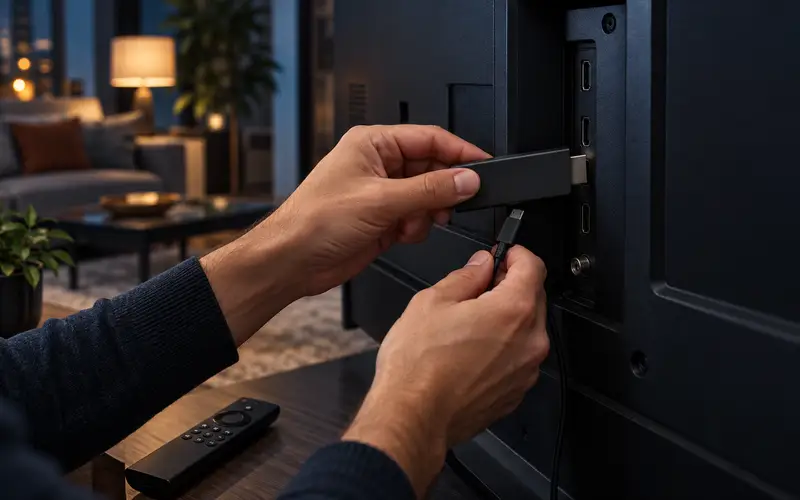
Start by identifying the model and OS in Settings. Then look for the player through the device's official store or the player's official support path, sign in only with credentials supplied through a trusted provider channel, and test one feature at a time. Keep the original account details private and never paste a full server address, username, or password into a public support forum.
This article intentionally does not publish universal APK installation instructions. Those instructions can be inaccurate for a particular Fire TV model and may conflict with platform rules. The safer path is official availability, a supported player, and device-specific help. Wizard TV's device guide explains that setup depends on platform, model, region, and player availability.
A careful setup sequence also makes later troubleshooting easier. After each step, confirm one result before moving on: the app opens, the account signs in, the guide or channel list appears, and one permitted stream starts. Record the exact error message if something stops. That is more useful to a legitimate support team than a vague report that the app is not working.
How to Fix IPTV Buffering on Firestick
When Firestick buffering starts, compare another channel and another video app before reinstalling anything. Check Wi-Fi signal strength, temporary household congestion, the selected video resolution, free device storage, player updates, and whether the same behavior appears on another network. A high one-time speed-test result does not rule out packet loss or short Wi-Fi interruptions.
Make one reversible change at a time. Restart the player, restart the device, test nearer to the router, and compare Ethernet where possible. If one channel fails but others work, record the channel and time rather than resetting the whole setup. Our buffering and freezing guide provides the ordered evidence-first process.
Best Firestick Settings for IPTV Streaming
Keep the device and player current, maintain free storage, and use a stable network connection. Review playback and guide settings inside the chosen player only after learning what they control; names and effects vary. A setting that improves one app can be irrelevant to another, so avoid copying a list of toggles from an unrelated player or device model.
Treat 4K as a chain rather than a promise: the stream, account, player, device, display, network, and HDMI path each need to support the selected format. If playback is unstable, testing a lower-impact setting can reveal a device or network limit, but it does not independently diagnose the provider or content source.
Guide refreshes, remote-control behavior, and decoder choices are player-specific. Read the current documentation for the app you actually installed before changing advanced playback settings. If an update changes a menu or removes an option, return to a simple working baseline rather than applying advice for an older version. General maintenance is useful; unverified configuration folklore is not.
Firestick vs. Smart TV for IPTV
A Fire TV Stick can simplify remote navigation and let you update the streaming environment separately from the television. A Smart TV can reduce cables and remotes, but its app availability, store policy, and updates depend on the TV platform and model. Neither category guarantees that a particular player, subscription, or format will work.
Choose the platform that has a supported player path for your intended service and that your household can maintain comfortably. For a new TV setup, ask about the exact model before committing. If your current device works reliably, avoid switching simply because a generic list calls another option best.
Also consider who will maintain the setup. A separate stick can be moved or replaced without changing the television, while an integrated app can be simpler for someone who wants one remote. Both choices require periodic updates and an honest compatibility check. The right answer is the one that keeps the supported path clear for the people who will actually use it.
| Factor | Fire TV device | Smart TV |
|---|---|---|
| App availability | Depends on model, OS, store and developer | Depends on TV platform, model and region |
| Setup | Separate device and remote | Integrated into the television |
| Maintenance | Update device and player | Update TV platform and app |
| Portability | Can move between compatible HDMI screens | Tied to the television |
Sources checked
Quick answers
The best app depends on the exact Fire TV operating system, current availability, login method, guide needs, and player support. Verify the listing or official documentation on your device before selecting one. If the app is not offered through a supported route, choose a compatible alternative rather than forcing an installation method.