Wizard TV Not Working? Fix Black Screen, Playback Errors & Channels Not Loading
Troubleshoot black screens, playback errors, channel-loading failures, app state, device issues, credentials, and support escalation without guesswork.
Published 2026-10-05 · Updated 2026-10-09
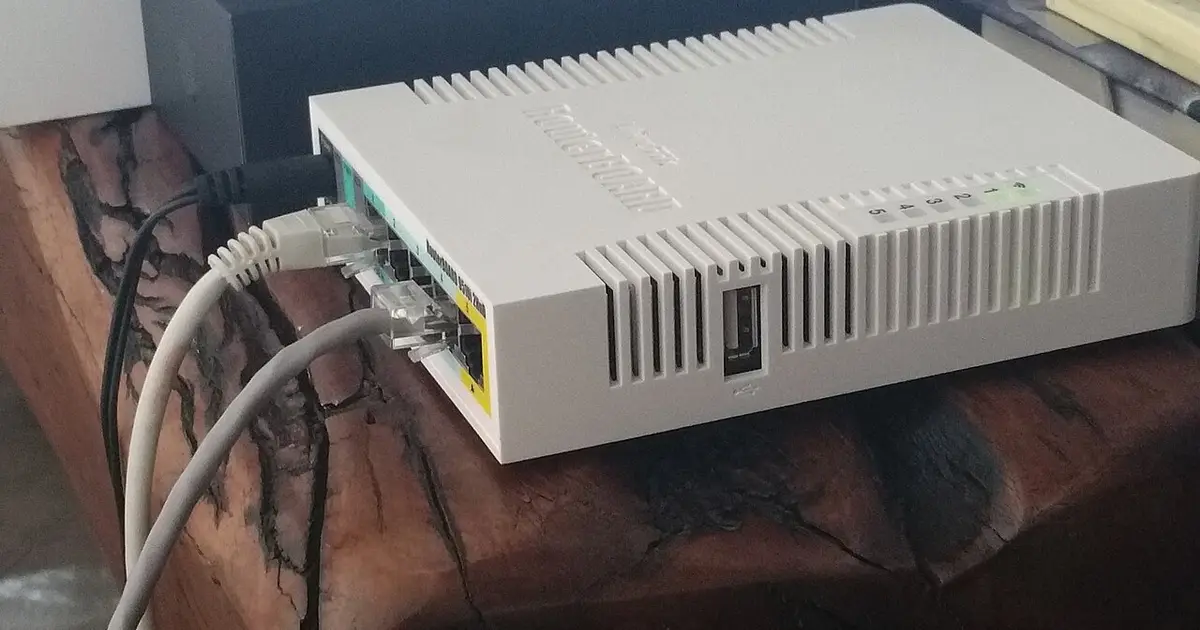
Identify the failure before changing settings
A black screen, an empty channel list, and a playback error are three different problems. Treating them the same usually wastes time. A black screen means the player opened something but cannot show usable video. An empty channel list means the app may not have loaded account or playlist data. A playback error after a channel opens can point to decoder support, a stream-specific issue, expired access, or network reachability.
Start with scope. Does the issue affect one channel, one category, all channels, or only one device? If one device fails while another plays normally, focus on the failing device and player. If every device fails, check account status, connection, and support messages. If one channel fails but the rest work, collect that channel name and time instead of changing credentials.
Keep private details private. If you need help, do not post real username, password, server URL, or account screenshots publicly. Use placeholders when describing what you entered, and share sensitive details only through the official support path.
| Symptom | Most likely area | Best first check |
|---|---|---|
| Black screen with no error | Player render or stream load | Try another channel and restart the player |
| Channels never populate | Playlist, account, or network reachability | Check credentials and device internet |
| Playback error after opening a channel | Player compatibility or stream issue | Compare another player or device |
| Works on one device only | Device state or app install | Clear cache, update, or reinstall last |
Black screen troubleshooting
For a black screen, first wait long enough to rule out a slow start, then back out and open a different channel. If another channel displays video, the app and device can render playback, which makes a single-stream issue more likely. If every channel produces a black frame, close the player completely and reopen it. On streaming sticks and smart TVs, use the system app switcher or restart the device so the player is not simply resumed from memory.
If audio plays while video remains black, suspect decoder handling or a video track the device does not like. Try the same item in a different compatible player or change the player decoder setting if one exists. Hardware decoding is usually preferable on small TV devices, but an older chipset may behave better with a different option. Change one setting and retest the same item so the result is meaningful.
If the screen is black before any interface appears, the problem may not be the stream at all. Check HDMI input, TV picture state, device power, and whether other apps display correctly. A player cannot fix a TV input problem, and a playlist cannot fix a device that is frozen on its home screen.
Channels not loading
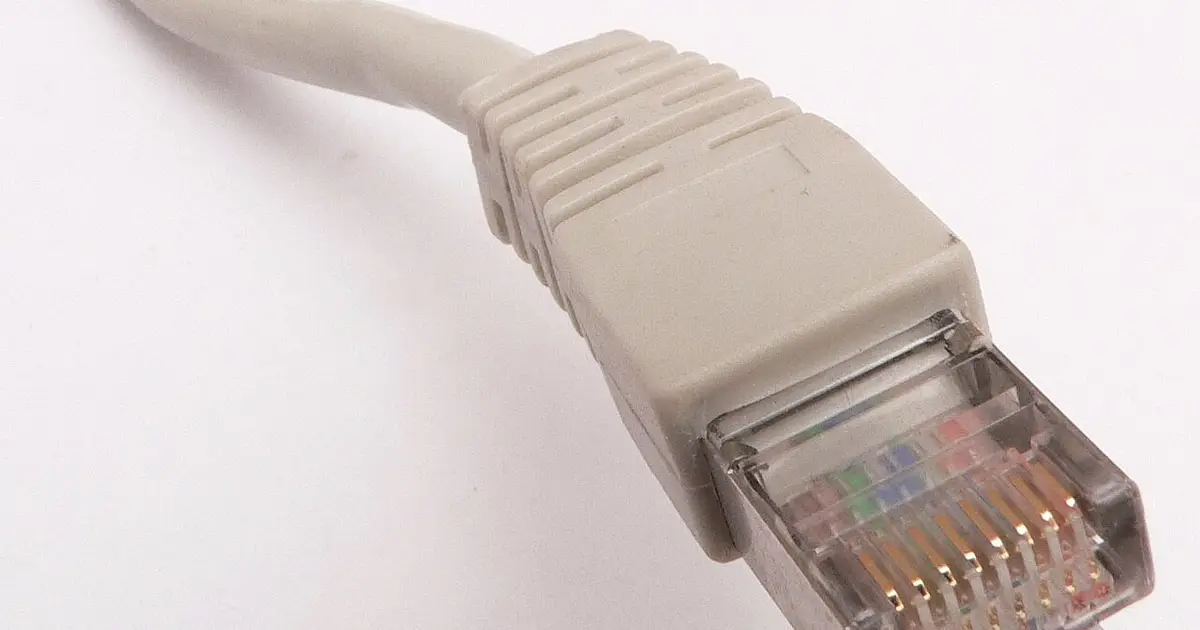
An empty channel list usually means the app did not receive or parse the expected data. Confirm the device has internet access outside the player. Then check whether the app shows an account, playlist, or server error. A blank list with no message can be caused by stale cache, interrupted loading, wrong credentials, expired access, or a player that cannot read the format it was given.
If you recently copied login details, look for invisible mistakes: leading spaces, trailing spaces, smart quotes, missing port numbers, pasted line breaks, or `https` entered where the provided server expects `http`. Do not guess the server URL. A small mismatch can produce a total loading failure even when the username and password look correct.
If the list loads on one device but not another, compare app versions and field labels. Some players separate host and port; others expect a full URL. Some label the same field as server, host, portal, or URL. Matching the data to the exact field matters more than retyping it repeatedly.
Playback errors after the list loads
If channels appear but playback errors occur, the account has at least loaded some data. That shifts the investigation away from a basic login failure and toward stream access, player handling, device capability, or network delivery. Try a different category and a different channel. If only premium live events fail while ordinary channels work, collect examples. If every item fails at playback, test a second player or device.
Some playback errors are caused by stale sessions. Signing out and back in can help, but only if you know the credentials and can enter them correctly. Before doing that, restart the app and device. If the player offers clear-cache without clearing all data, try that first. Full reinstall should come after simpler recovery steps, because it removes local settings and can create a new login problem.
Network problems can still appear at this stage. A list can load over an unstable connection because it is small, while video fails because it needs sustained delivery. Test Ethernet or another network if the error appears across many channels. If another network changes the result, include that in the support note.
Account, app, or service-side escalation
Escalate when the same failure is repeatable and local checks do not explain it. A useful message says: device model, player name, whether the channel list loads, whether one channel or all channels fail, exact error text, connection type, and the time the issue occurred. This is much better than saying the service is down, because support can compare your symptoms with account status and known reports.
Do not assume a public outage unless there is a verified statement. A household router failure, expired credentials, wrong URL, or a single affected stream can all look like a service outage from the couch. The clean test is whether the same account fails on multiple devices and networks, while unrelated internet apps continue to work.
For device guidance, the device setup page is a useful internal reference. Use the FAQ for general account questions. The pricing page is not part of this troubleshooting flow unless you are specifically reviewing plan options.
Prevention once playback returns
After the issue is fixed, keep a simple record of what worked. If clearing cache solved a channel-list problem, you know where to start next time. If Ethernet solved playback errors, the network path deserves more attention than credentials. If a different player solved black screens, keep both players installed until you are confident the main one is stable.
Avoid maintaining too many experimental settings. A player with changed decoder mode, custom DNS, old cache, and several imported playlists is harder to support than a clean setup. Stable streaming comes from knowing which component is responsible, not from collecting tweaks.
Device-by-device recovery notes
Smart TVs often hide app recovery controls behind system menus. If the player opens but channels do not load, close the app from the TV's app manager rather than just pressing the home button. Many TVs suspend apps instead of quitting them. After force-closing, reopen the player and wait for the channel list to reload. If the TV has limited storage, remove unused apps before reinstalling anything because low storage can make updates and caches behave unpredictably.
Android TV boxes and streaming sticks usually give more control. You can restart the device, clear a single app cache, check app permissions, and compare players. Start with cache, not data. Clearing data removes saved login details. If you must clear data, make sure you have the correct credentials and server information first. Keep one working app untouched while testing another so you do not lose the only good baseline.
Phones and tablets are useful for comparison because they often have stronger hardware and easier network switching. If the same account loads on a phone over the same Wi-Fi, the TV device or player deserves attention. If the phone works on mobile data but not Wi-Fi, your home network deserves attention. If the phone fails everywhere with the same account, the issue is more likely credentials, account status, or service-side.
Fire TV-style devices can accumulate background state after weeks of sleep. A full device restart is more useful than repeatedly reopening the app. Also check available storage; when a streaming stick is nearly full, app updates and cache writes can fail. If playback errors started after installing several unrelated apps, remove what you do not use and restart before blaming the service.
How to write a useful support note
A strong support note is short, factual, and ordered. Begin with the symptom: black screen, empty channel list, playback error, login rejected, or one channel not loading. Then add the scope: one channel, one category, all channels, one device, or every device. Then add the environment: device model, player name, Wi-Fi or Ethernet, and whether other internet apps work.
Include what changed the result. If another player works, say so. If Ethernet works but Wi-Fi fails, say so. If the same account fails on a second network, say so. These details prevent the conversation from circling through generic advice. They also help support decide whether to review account status, a specific stream, or the setup on your device.
Leave out risky information. Do not paste passwords into screenshots. Do not share the full server value in a public forum. Do not send unrelated billing or personal details when the issue is a playback symptom. A support note should make the technical problem clearer without exposing more private information than necessary.
Mistakes that make a working account look broken
A working account can look broken when the app is resumed from sleep. Many streaming devices keep the last screen in memory, so the player appears open even though its network session is stale. Closing and reopening the app is different from returning to it with the home button. If you see a black screen after the device wakes, restart the app before changing login details.
A second mistake is testing only the same failed channel. If that channel is the problem, every local change will seem useless. Always test at least two unrelated channels and one different category. The difference between one failed item and every failed item is the difference between a narrow report and a full setup investigation.
A third mistake is deleting app data before checking credentials. Deleting data can be useful for a corrupted install, but it also removes the information needed to sign in again. If the credentials are not available, you can turn a playback issue into a login issue. Clear cache first when possible, and save full data resets for the end.
A fourth mistake is assuming a branded symptom requires a brand-specific fix. Black screens, playback errors, and channel-loading failures often live in the player, device, HDMI path, or network. Support can help with account and service-side questions, but local symptoms still need local comparisons.
A final mistake is using old screenshots as truth. Apps update, fields move, and server details can change. If setup instructions were saved months ago, confirm current instructions through the right support path before rebuilding the account in a different player.
When to stop troubleshooting locally
Stop local troubleshooting when the same failure appears on more than one device, more than one compatible player, and more than one network. At that point, repeated cache clears and reinstalls are unlikely to reveal much. The evidence is strong enough for support review, especially if the failure includes a specific error message or channel pattern.
Stop even sooner if you are no longer sure which settings were changed. A messy setup can hide the original problem. Return optional settings to normal, keep one working baseline if you have it, and send a concise report. The goal is not to prove you tried everything; the goal is to preserve useful evidence.
If the issue is resolved, do not keep changing settings in search of a perfect setup. Stable playback is the goal. Extra experiments after the fix can create a new symptom and make the original solution harder to remember.
If the only remaining problem is one title, one channel, or one time window, keep the report narrow. A narrow report is not weaker; it is more actionable. It tells support what to inspect without implying that every device or every stream is broken.
If a family member's device fails but yours works, compare the devices before changing the account. Check app version, storage, Wi-Fi signal, VPN settings, private DNS, and whether the failing device is on a guest network.
If you recently changed routers, remember that the player did not change but the network identity did. New routers can use different DNS, firewall rules, band steering, or isolation settings, and any of those can affect loading or playback.
If the symptom appears only after long idle periods, restart the app and device before reporting an outage. Sleep and resume behavior can leave a stale session on the screen. If the symptom appears only after a password update, focus on saved profiles and field values instead of playback settings.
If a single category fails, name that category and test at least one unrelated category. A branded troubleshooting report is much stronger when it separates black screen, empty list, playback error, and category-specific failure.
A final practical note: keep the original failure visible until you have described it. Users often restart, reinstall, and reset before they can remember the exact message. If there is an error code, copy it. If the screen is blank, note whether menus still work. If channels fail to load, note whether categories appear. Those small observations decide whether the next step is account review, player recovery, or device troubleshooting.
If you support more than one household device, choose a primary test device and leave it stable. Use secondary devices for experiments. This prevents a household-wide outage caused by editing every app at once. Once the root cause is known, apply the fix carefully to the other devices.
Sources checked
Quick answers
The player may have opened a stream it cannot render, or the stream may not be delivering usable video. Try another channel, restart the player, then compare another player or device. Note whether menus still respond.