Why Does IPTV Keep Freezing? Causes, Fixes & Troubleshooting Guide
A diagnosis-first guide to finding why IPTV freezes, using symptom patterns, network stability, packet loss, device behavior, decoder clues, and stream comparisons.
Published 2026-10-05 · Updated 2026-10-09
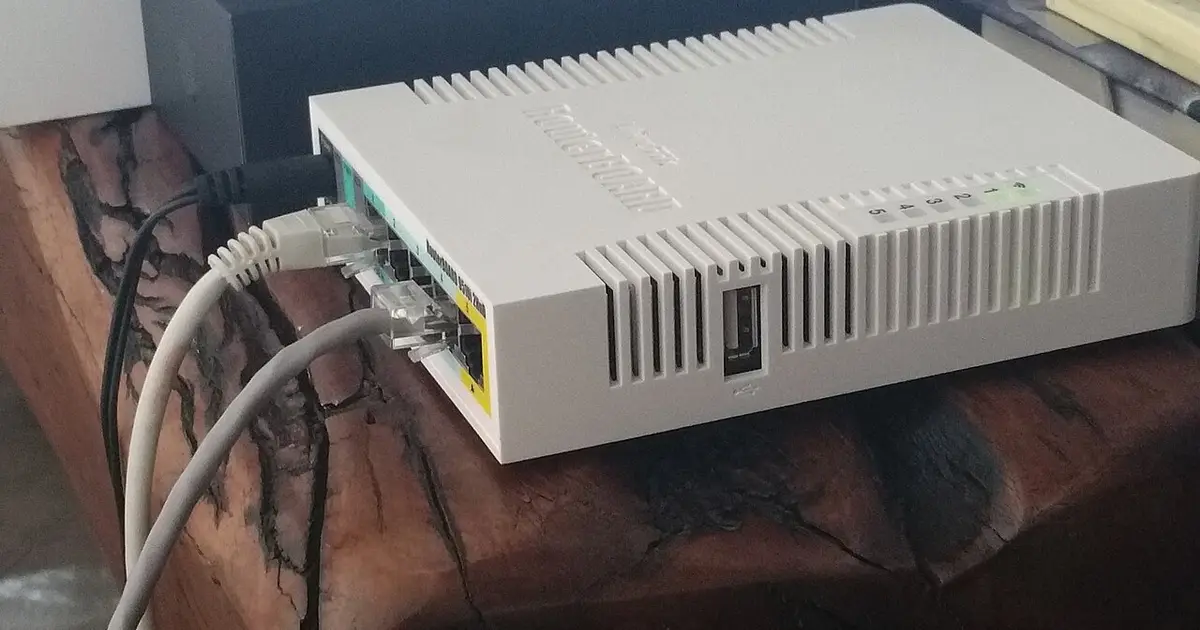
Use symptoms to identify the failing layer
The useful question is not simply how to stop a freeze; it is why the freeze happens. Freezing is a symptom with several possible causes. A stream can freeze because packets are lost before they reach the player, because Wi-Fi drops briefly, because the device cannot decode the video smoothly, because the player has stale cache, or because one stream is unstable. The same frozen picture can come from different layers.
Start diagnosis by describing the freeze. Does the picture stop while audio continues? Does the entire app lock up? Does the channel recover after a few seconds, or must you reopen it? Does it happen after the same amount of time? Does it happen only at night? These details matter because each pattern points somewhere different. A repeatable freeze after ten minutes may be device heat or app state. A freeze every few seconds may be jitter or packet loss. A freeze only on one feed may not involve your home network at all.
This page is intentionally different from an action checklist. If you need a sequence of immediate fixes, use the buffering fix guide. Here, the goal is to map symptom to cause, test the likely layer, and choose the next action based on what the result means.
| Symptom | Probable layer | Diagnostic test | Interpretation |
|---|---|---|---|
| Video freezes but audio continues | Decoder or player | Try another player or decoder mode | Network may be fine; rendering path is suspect |
| All streams freeze at peak hours | Congestion or ISP route | Compare off-peak playback | Timing pattern matters more than one speed test |
| Only Wi-Fi freezes | Wireless instability | Compare Ethernet | Signal, interference, or router placement is likely |
| One channel freezes everywhere | Stream-specific | Compare channels and devices | Report that item with time and device details |
Buffering, freezing, and stuttering are not identical
Buffering usually means the player is waiting for more data and may show a spinner or loading message. Freezing often means the picture stops on a frame, sometimes while audio continues. Stuttering is repeated short motion interruption. People use the words interchangeably, but diagnosis improves when you separate them. A spinner points toward delivery or buffer starvation. Audio-with-frozen-video points toward decoder or rendering. Whole-app lockups point toward device resources or app stability.
Periodic freezes are especially useful clues. A freeze every few seconds often suggests unstable delivery: packet loss, jitter, weak Wi-Fi, or router congestion. A freeze after long playback can suggest thermal throttling, memory pressure, or a player cache issue. A freeze only after changing channels many times can suggest the player is not releasing sessions cleanly.
Random one-off freezes are harder to diagnose. Do not overreact to a single interruption. Look for repeated patterns across channel, device, time of day, and connection type. A cause is more credible when it repeats under the same conditions and disappears when one specific variable changes.
Network stability versus raw throughput
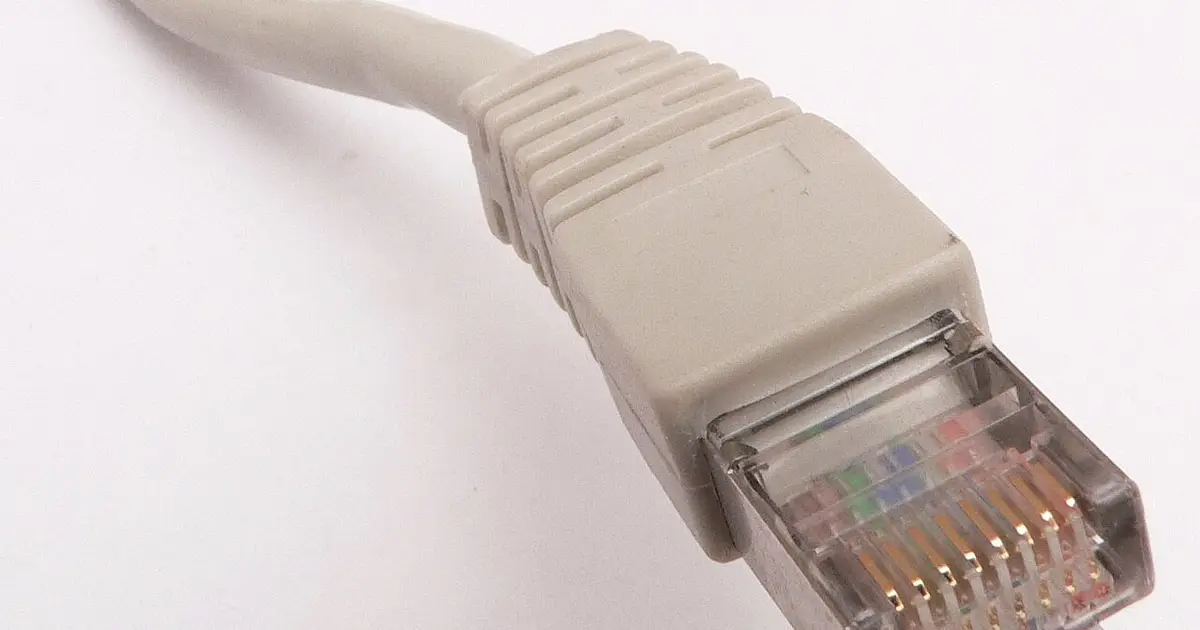
Insufficient throughput can freeze video, but many households have enough headline speed and still see freezes. Live video cares about steady delivery. Jitter changes arrival timing. Packet loss forces retransmission or leaves gaps. Latency spikes can delay requests. A speed test may average over these problems and still report a large number. That is why a clean Ethernet comparison is more valuable than a single peak speed reading.
Packet loss feels like unpredictability. The stream may play for thirty seconds, freeze, recover, and repeat. Other websites may appear normal because they can retry silently or load ahead. Live streams are less forgiving. If you can run a packet-loss or stability test on the network, look for dropped packets and spikes during the same period when playback freezes.
Congestion has a clock. If freezing appears in the evening, during major events, or when other household devices are busy, timing is evidence. Compare playback early in the day, then during the busy period. If the same device and player behave differently by time of day, investigate router load, ISP congestion, and household bandwidth use before blaming the app.
Wi-Fi-only freezes
A Wi-Fi-only freeze is one of the cleanest diagnoses because Ethernet removes the wireless link. If Ethernet solves the problem, the cause is probably not credentials, account status, or the channel list. It may be signal strength, interference, mesh placement, band selection, or a streaming device hidden behind the television.
Look at where the player actually sits. A phone speed test near the couch does not prove a TV stick behind a wall-mounted screen has the same signal. USB power, heat, HDMI extenders, and TV placement can all affect small devices. Try moving the device into open air, using a short HDMI extender, or testing a better power source if the device is a stick.
Mesh networks add another layer. A device may show strong Wi-Fi to the nearest node while the node itself has weak backhaul to the router. If freezing happens only in one room, compare that room with a room near the main router. The cause may be the mesh link, not the final device connection.
Device and decoder causes
When the same stream works on one device and freezes on another, the weaker device becomes the suspect. Older streaming boxes may struggle with certain codecs, high bitrates, or long sessions. Low storage and background apps can make the problem worse. Heat can also cause performance to drop after the device has been running for a while.
Decoder problems have recognizable signs. Audio may continue while video stops. The app interface may remain responsive even though the picture is frozen. A different player may handle the same stream better. Hardware decoding may help on one device and fail on another. Change decoder settings only when the symptoms point there, and compare the same channel after each change.
A device-specific diagnosis does not always mean the device is defective. It may simply be a poor fit for the player or stream format. Updating the app, freeing storage, restarting before long events, or using a lighter player may be enough. Replacement should come after you confirm the issue does not follow the same account to stronger hardware.
Stream-specific and service-side patterns
A single problematic channel should be treated differently from a whole-service failure. If one item freezes on multiple devices while other items play normally, the local device and router are less likely to be the root cause. Note the exact channel, category, time, and whether the issue is constant or appears only during a specific programme.
A service-side pattern becomes more credible when multiple devices and networks show the same symptom on the same item. Even then, avoid broad claims. The strongest report is narrow: this channel, this time, these devices, these networks, this behavior. That gives support something testable.
Do not use sports-rights or channel-availability assumptions as a diagnosis. A stream freezing is a technical symptom; availability and licensing are separate questions. If an item is unavailable, use official support rather than guessing from the player behavior.
Build a diagnosis from evidence
A good diagnosis has four parts: symptom, likely layer, test, and interpretation. Example: the picture freezes while audio continues; likely decoder or player; test another player on the same device; if fixed, keep the new player or adjust decoder settings. Another example: every stream freezes only on Wi-Fi; likely wireless instability; test Ethernet; if fixed, improve the wireless path.
Keep the notes short but exact. Device, player, channel, connection, time of day, and result are enough. The point is not to create paperwork; it is to stop repeating the same guesses. Once the likely cause is known, the fix is usually obvious: improve Wi-Fi, reduce congestion, change player settings, update a device, report a stream, or contact support with useful evidence.
Interpreting the test results
If Ethernet fixes freezing, the conclusion is not merely "use Ethernet." The deeper diagnosis is that the wireless path is unstable enough to hurt live playback. The long-term answer may be Ethernet, a better access point, different router placement, a shorter mesh hop, or removing interference near the device. The exact fix depends on the room and equipment, but the cause category is wireless delivery.
If another device fixes freezing on the same network, the connection is probably capable of carrying the stream. The failing device may be overheated, underpowered, short on storage, or using a player that handles the stream badly. This is where device maintenance, app updates, decoder settings, or player comparison make sense. Rebooting the router may still be harmless, but it is no longer the strongest explanation.
If another player fixes freezing on the same device, the diagnosis narrows to app behavior. The app may use a different buffering engine, decoder path, or stream parser. Keep the working player as a baseline. Then decide whether to continue using it, update the original player, or adjust the original player's decoding and buffer settings. Do not change account details when the same credentials work elsewhere.
If another network fixes freezing, the local ISP route or home network deserves attention. That does not automatically prove the service is perfect; it proves the path changed. Compare DNS, router load, packet loss, and household usage. If the alternate network is a mobile hotspot, remember that it is a diagnostic sample, not necessarily a sustainable replacement.
If nothing changes across devices, players, and networks, the evidence supports escalation. The problem may involve the account, a stream source, or a broader service condition. At that point, the best next action is not more local experimentation but a precise report with the comparisons already completed.
Why diagnosis prevents recurring freezes
A fix-only mindset often solves the current session and fails tomorrow. For example, restarting the router may temporarily clear congestion, but if the real cause is a streaming stick behind the TV with poor Wi-Fi, the freeze will return. Diagnosis asks what changed and why. That makes the next fix more durable.
Recurring freezes usually have a signature. They happen after long watch sessions, during prime time, in one room, on one channel, after app updates, or when a second household device starts heavy traffic. The signature is more useful than the freeze itself. Once you know the pattern, you can test the suspected layer directly.
This is why article #5 should not duplicate the immediate 15-step fix list. A person asking why IPTV keeps freezing needs a mental model. They need to understand delivery stability, decoder behavior, device limitations, stream-specific failures, and how tests prove or disprove each cause. With that model, they can choose the right fix instead of trying every fix every time.
Examples of cause-first reasoning
Case one: the stream freezes only in the bedroom, and Ethernet in the living room works. The likely cause is not the account. It is the bedroom wireless path, the device location, or a mesh backhaul problem. The next action is to test the bedroom device closer to the router, move the access point, or use Ethernet/powerline if appropriate. Re-entering credentials would not match the evidence.
Case two: the same channel freezes on two devices, but every other channel is stable. The likely cause is the channel feed or its delivery path. The next action is to report the exact channel and time, not to reset the router. If a second network shows the same single-channel failure, the diagnosis becomes stronger.
Case three: a device freezes after twenty minutes and feels hot. The likely cause is thermal or resource pressure. The next action is to restart, improve ventilation, close background apps, free storage, or test a different player. Network speed is not the leading clue because the timing follows device load.
Case four: every live stream freezes when a game console downloads updates. The likely cause is household congestion or router quality of service. The next action is to pause downloads, schedule updates, or prioritize the streaming device. The service did not change; the home traffic pattern did.
Case five: audio continues while video stops in one player, but another player works. The likely cause is decoder or player handling. The next action is to keep the working player or adjust decoder settings. That is a different diagnosis from buffering, where the player waits for data.
Final freezing diagnosis checklist
Write the freeze as a sentence: what stopped, where it stopped, when it stopped, and what recovered it. For example, picture froze but audio continued on one device after twenty minutes. That sentence already suggests a different cause than every channel freezing on Wi-Fi during evening peak time.
Then attach the comparison that matters most. Ethernet comparison tests wireless. Device comparison tests local hardware. Player comparison tests app handling. Channel comparison tests stream-specific behavior. Network comparison tests the home route. A diagnosis without a comparison is usually just a guess.
The final answer should name a layer, not a mood. Weak Wi-Fi, packet loss, device heat, decoder incompatibility, one stream, peak congestion, stale app state, and account/service review are layers. "IPTV is bad" is not a diagnosis and will not help you choose the next action.
If two causes appear possible, choose the test that separates them. Wi-Fi versus stream can be separated by Ethernet and channel comparison. Device versus player can be separated by another player on the same device and the same player on another device.
A cause-first answer may still lead to a simple fix, but it reaches that fix for a reason. That reason is what prevents repeated trial and error when freezing returns.
If freezing follows a schedule, write down the time and household activity. If freezing follows a channel, write down the channel and event. If freezing follows a device, write down heat, storage, and player version. The repeated clue is the diagnosis.
If no pattern appears after several tests, stop changing settings and collect a support-ready report. Random changes can create a second problem while the first one is still unresolved.
If you can reproduce the freeze on demand, you have strong evidence. Reproducible failures are easier to solve than random ones because each test can confirm or reject one cause. Use the same channel, device, and connection until you are ready to change one variable.
If the freeze cannot be reproduced, treat it as intermittent and collect timing. Intermittent problems often reveal themselves through logs of time, room, weather, household load, or event popularity. The absence of an immediate pattern does not mean there is no cause.
Sources checked
Quick answers
Speed tests can miss jitter, packet loss, latency spikes, Wi-Fi drops, router congestion, and device decoder limits. Live streams need stable delivery, not just high peak speed.